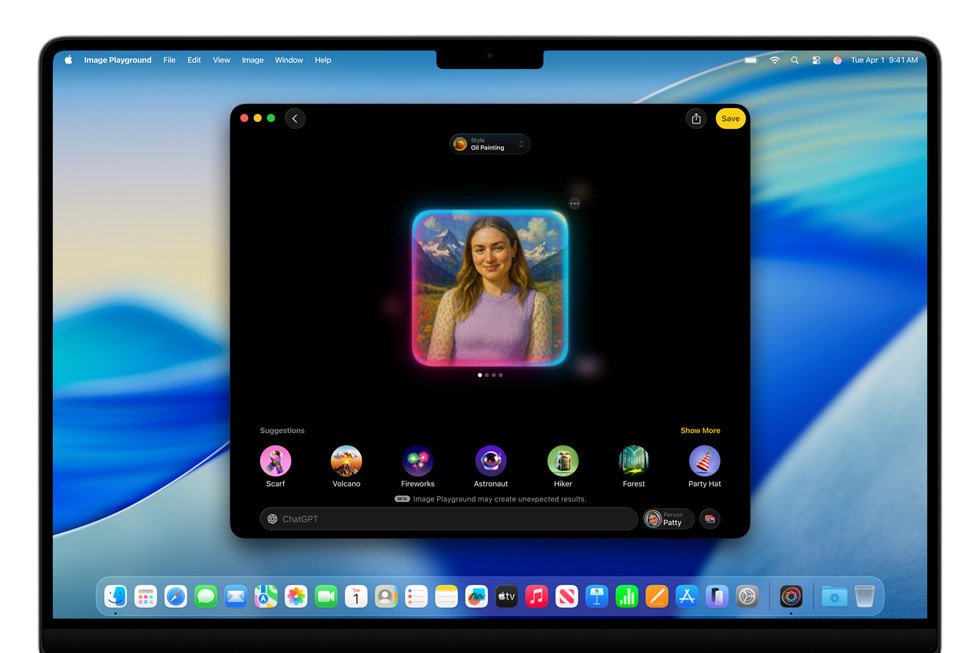
今日蘋果推出 iOS 26.1,與此同時 Apple Intelligence 繁體中文也正式上線!目前實測,幾乎所有功能都可以透過繁體中文正常使用(例如 Siri、寫作工具、影像樂園、視覺智慧、通知摘要等),而且體驗感受、流暢度也不錯。
如果你也想體驗 Apple Intelligence 繁體中文,可以參考本篇的使用教學;包括機型限制、設定步驟、可用功能、注意事項都會一併整理給你看。

Apple Intelligence 支援機型清單
支援 Apple Intelligence 的 iPhone
- iPhone 17 Pro Max
- iPhone 17 Pro
- iPhone Air
- iPhone 17
- iPhone 16 Pro Max
- iPhone 16 Pro
- iPhone 16 Plus
- iPhone 16
- iPhone 16e
- iPhone 15 Pro Max
- iPhone 15 Pro
支援 Apple Intelligence 的 iPad
- M4 iPad Pro
- M2 iPad Pro
- M1 iPad Pro
- iPad Air 7
- iPad Air 6
- iPad Air 5
- iPad mini 7
支援 Apple Intelligence 的 Mac
- MacBook Air:M1 晶片以上機型。
- MacBook Pro:M1 晶片以上機型。
- iMac:M1 晶片以上機型。
- Mac mini:M1 晶片以上機型。
- Mac Studio:M1 Max 晶片以上機型。
- Mac Pro:M2 Ultra 晶片以上機型。
Apple Intelligence 繁體中文設定方式
確認你的裝置符合 Apple Intelligence 機型要求,就能來設定啟用 Apple Intelligence;我這邊用 iPhone 做示範,Mac 與 iPad 的啟用方式大同小異。
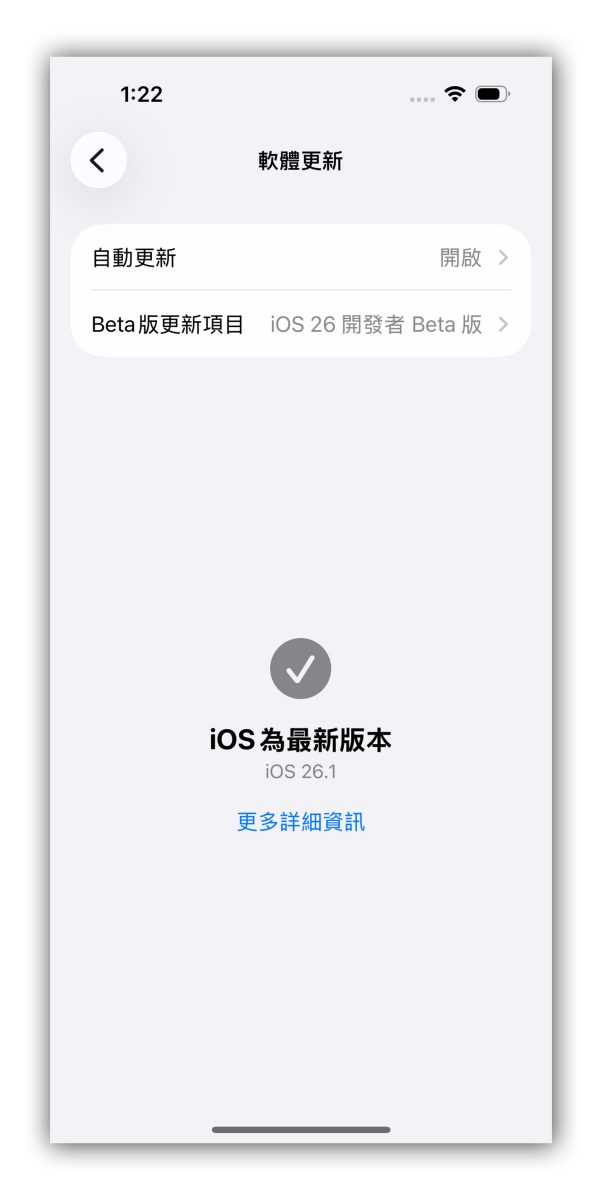
1. 將裝置更新至 iOS 26.1 正式版以上
2. 設定並啟用 Apple Intelligence 繁體中文
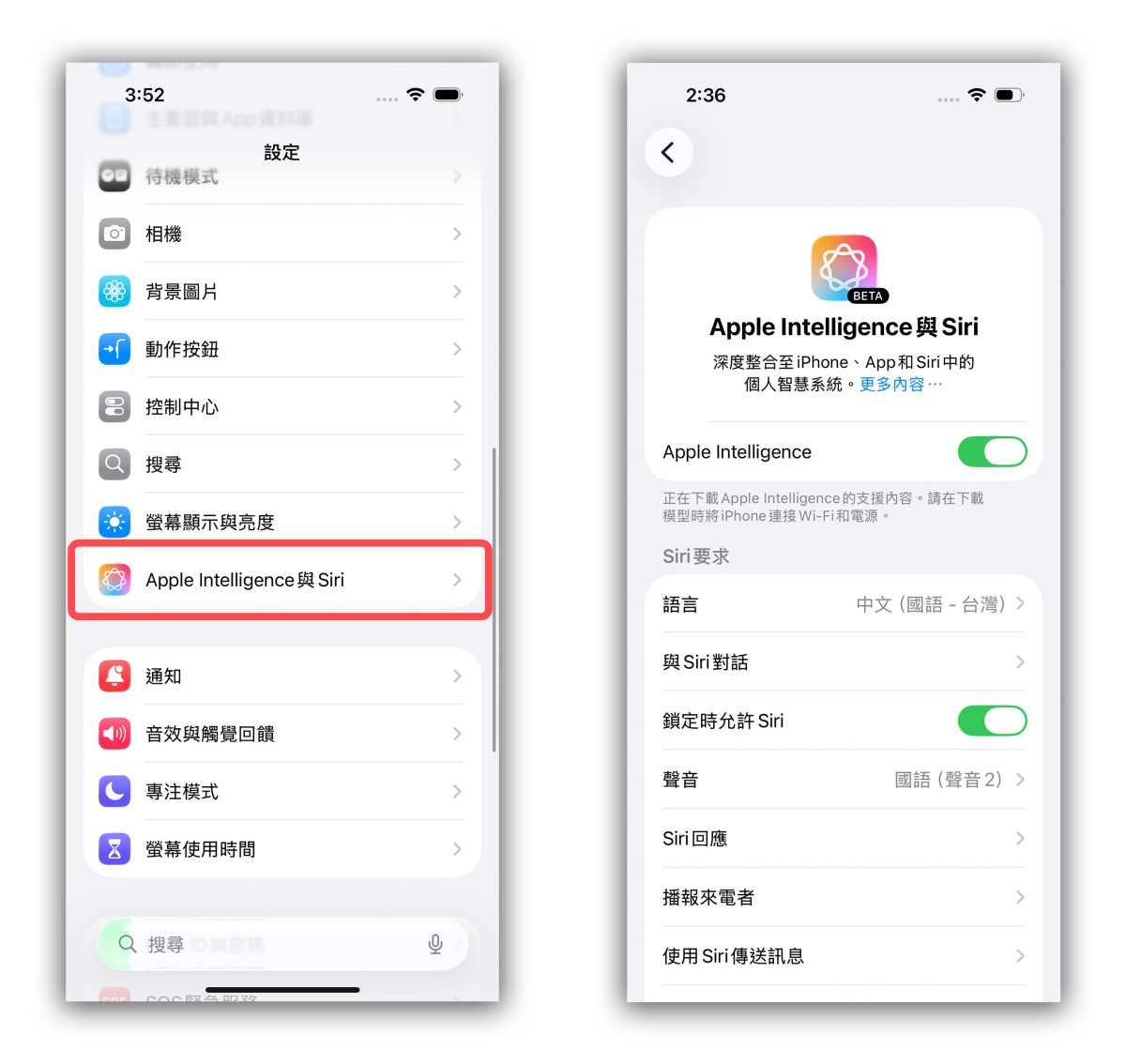
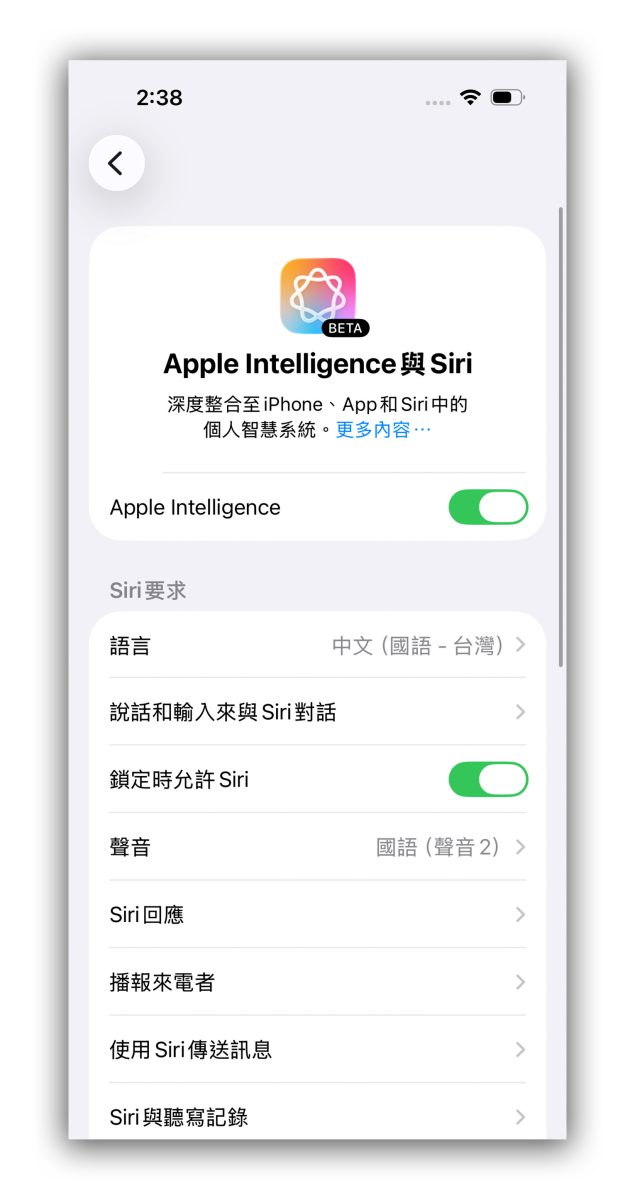
更新完 iOS 26.1 後,如果你的「裝置語言」以及「Siri 語言」都有設定為「繁體中文(台灣)」,即可到「設定」>「Apple Intelligence 與 Siri」開啟 Apple Intelligence。
初次使用需要額外下載 Apple Intelligence 的運作模型,選項下方會有小字提示「正在下載 Apple Intelligence 的支援內容」,要把 iPhone 維持在充電狀態並連上 Wi-Fi 才會進行下載;當然下載速度因網速而異,但因為沒有進度條可以看,所以就充電、連 Wi-Fi 放著讓它跑就好。
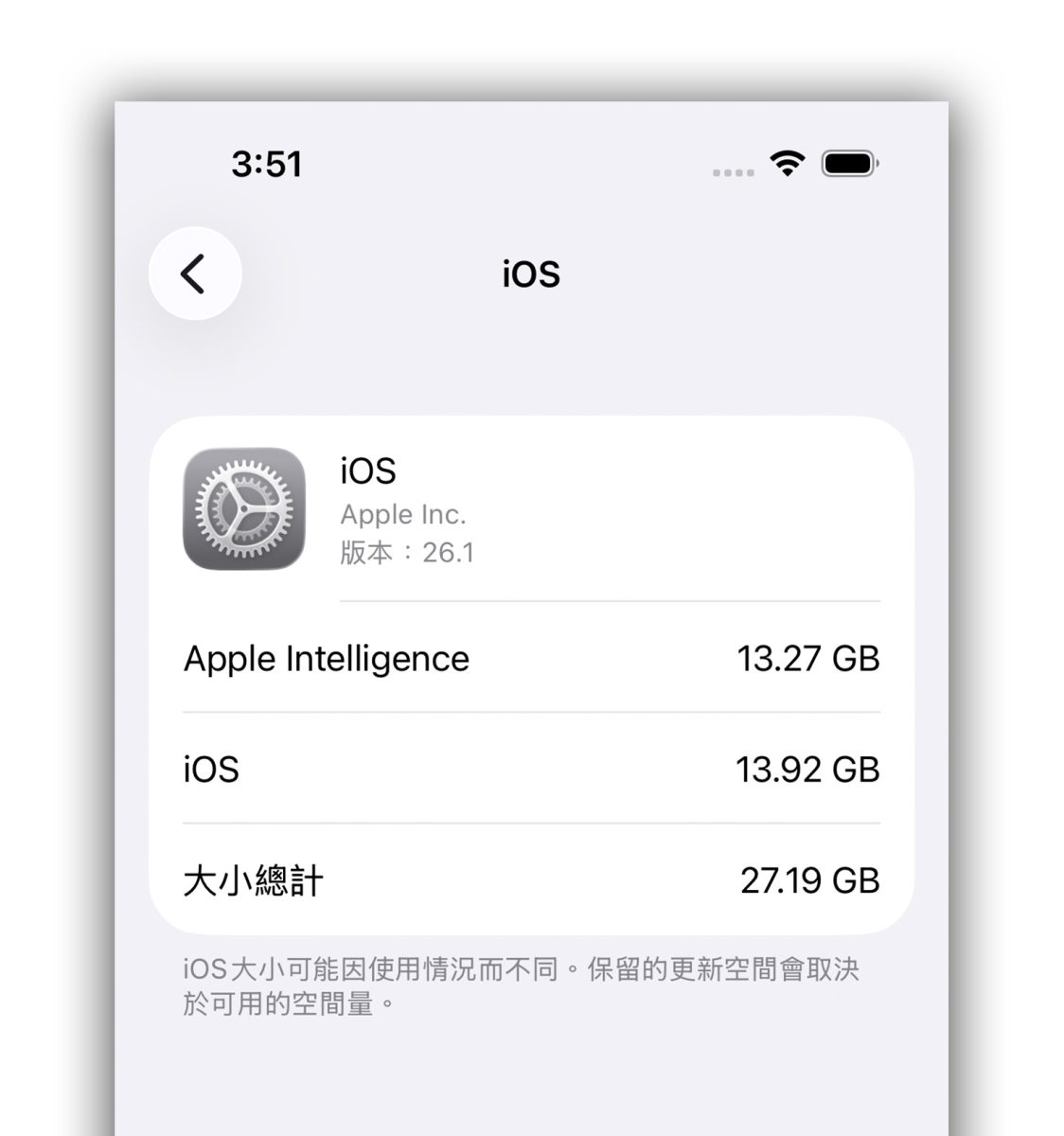
特別留意,Apple Intelligence 模型的檔案體積不小,以我 iPhone 15 Pro 來說就有 13.27GB,請確保手機有足夠的空間可以容納 Apple Intelligence。
Apple Intelligence 模型下載好後,選項下方的小字會消失,這時你就能開始體驗繁體中文的 Apple Intelligence。
Apple Intelligence 繁體中文哪些功能可以用?
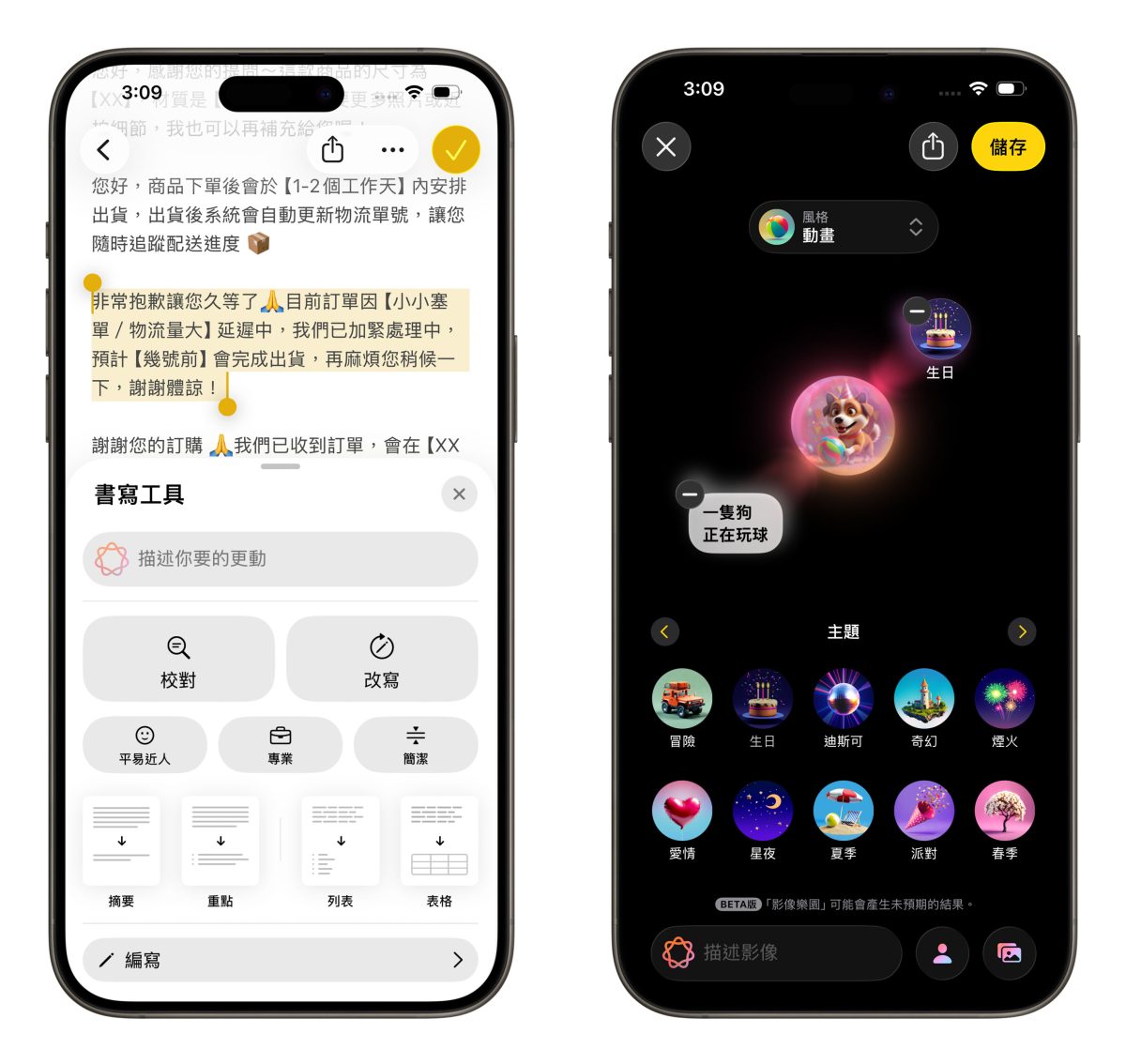
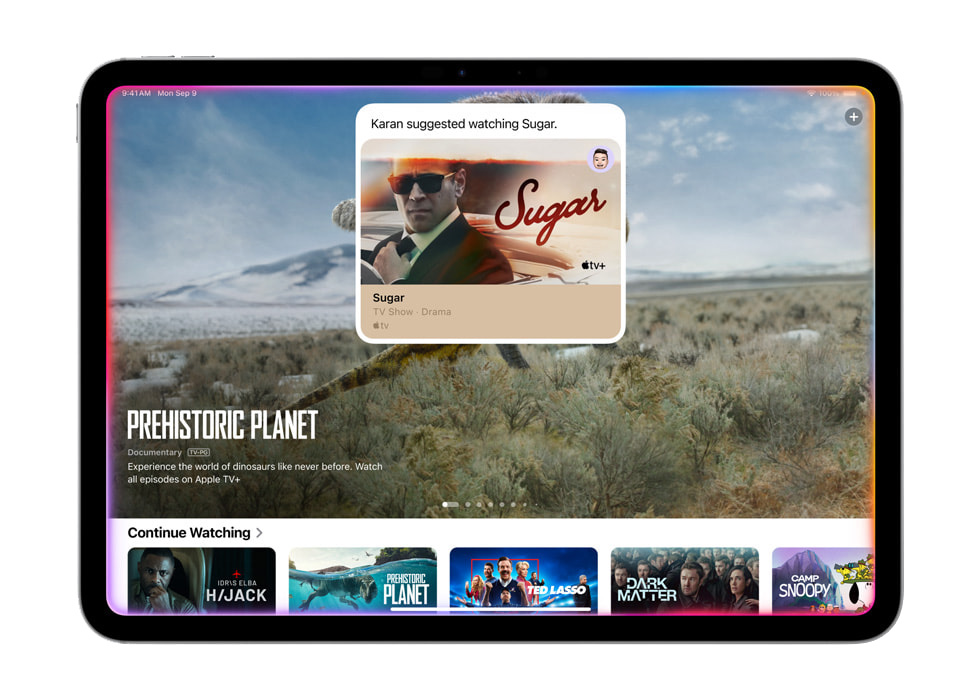
經過實測,目前所有已發佈的 Apple Intelligence 功能都可以直接以繁體中文使用,包括:
- 寫作工具。
- 全新 Siri。
- 郵件智慧工具(郵件分類、總結摘要、置頂重要郵件、智慧回覆建議)。
- 訊息智慧工具(智慧回覆建議、群組投票建議)。
- 相簿智慧功能(以自然語言生成照片回憶、自然語言搜尋、智慧搜尋建議)。
- 備忘錄語音轉文字的摘要功能。
- 進階專注模式。
- 進階通知摘要。
- Safari 總結網站內容。
- App Store 自然語言搜尋。
- Image PlayGround 影像樂園。
- Genmoji。
- Image Wand 影像魔杖。
- 整合 ChatGPT。
- Visual Intelligence 視覺智慧。
- 優先通知。
- 即時翻譯(iMessage、電話、FaceTime)。
- AirPods 即時翻譯。
- 自動建議提醒事項。
- Apple Intelligence 捷徑指令。
部分 Apple Intelligence 功能的詳細教學可先參考下方文章,後續我們也會繼續補充其他 Apple Intelligence 的功能教學,歡迎大家隨時關注果仁官網,與各大社群(FB、IG、Dcard、Threads)。
Apple Intelligence 繁體中文啟用教學:總結
以上 Apple Intelligence 繁體中文啟用教學分享給有興趣的朋友參考;我目前的體驗感覺還不錯,功能運作算流暢,完成度頗高;但還是要打個預防針,畢竟 Apple Intelligence 還在 Beta 階段,所以實際表現仍有可能會不如預期,就請斟酌使用。
延伸閱讀》
如果想知道更多關於 Apple 的消息、教學、小技巧或是科技新知,一定要點擊以下任一 LOGO,追蹤我們的 Facebook 粉絲團、訂閱 IG、YouTube 以及 Telegram。